|
All Points Yarn
Download REACH OUT & FIND US
Locator Map to
EMAIL allpointsyarn@aol.com RAVELRY FACEBOOK
|
DesignaKnit 8™ Software & Knitting Machine CablesQUICK LINK MENU - Jump to where you want to go first!
Additional Supporting information for DaK 8 Design software for the PC for hand and machine knitting and crochet brings together your creativity and the technology to transfer that to a knitting machine or to printed pattern. DesignaKnit™ offers knitters original garment shape design, a large garment shape library with thousands of garment pieces for altering, pattern grading, smart stitch and fabric design creation, flexible graphics import, and innovative "knit from screen" monitoring, tools for hand knitters and machine knitters alike. Stitch patterns can be positioned into specific shapes for optimal design control. Individual shapes or collections of shapes may be laid out for simultaneous viewing, comparison, and measuring. Independent knitwear designers will enjoy saving hundreds of hours of time and money taking a completed garment design and grading it from a given size through several increments to another size in just a couple steps. DesignaKnit™ costs only a small fraction of what the commercial versions of software that do the same thing cost, and All Points Yarn regularly answers questions of yarn company designers about the capabilities of DesignaKnit™. Classes may be scheduled to learn DesignaKnit™ more thoroughly, see the List of Classes to schedule. DesignaKnit™ is not restricted to knitting, however. Crocheters can design charts which correspond to the gauges of their stitch patterns, and those who embroider and needle point will find the cloth gauge switching almost instantaneous, being able to resize designs to and from delicate petit point to immense carpet scale. DesignaKnit 8™ for Windows is powerful, affordable software for designing knitwear (and MORE!) available in Hand Knit, Machine Standard, Machine Professional, and Complete versions. All Points Yarn sells all versions. If you already own DesignaKnit™, versions 5, 6, or 7, or the DesignaKnit™ Concept, read about the pricing and availability of the various upgrades and additions available for DesignaKnit 8™. If you've already purchased one flavor of DaK8, and want to upgrade within version 8, please email for more information.
DESIGNAKNIT 8™ FEATURE COMPARISON
Purchase or Upgrade Your DesignaKnit 8 at All Points Yarn! Please contact All Points Yarn for information on purchasing DesignaKnit8 for your model of machine, and the necessary cable for that model. For any upgrades from previous versions of DesignaKnit, you may send your previous version's disks with the disks' license number to All Points Yarn. Include your contact information: name and address, phone number, and email address. DESIGNAKNIT 8 CABLES ORDER FORM Questions? allpointsyarn@aol.com HANDKNIT New Customers: DesignaKnit 8 Handknit: $338.00
Upgrading Customers: If want to add DesignaKnit 8 Handknit to an existing version (DaK 5, 6, DaK 7 Standard, or DaK 7 Pro): $273.00
MACHINE STANDARD New Customers: DesignaKnit 8 Machine Standard: $689.00
Upgrading Customers: Upgrade to DesignaKnit 8 Machine Standard: From DaK 7 Standard: $299.00
From DaK 5, 6, or Concept $533.00
MACHINE PROFESSIONAL New Customers: DesignaKnit 8 Machine Professional: $936.00
Upgrading Customers: Upgrade to DesignaKnit 8 Machine Professional: From DaK 7 Pro: $299.00
From DaK 7 Standard: $478.40
From DaK 5, 6, or Concept $741.00
DesignaKnit COMPLETE New Customers: DesignaKnit 8 Complete: $1,040.00
Upgrading Customers: Upgrade to DesignaKnit 8 Complete: From DaK 7 Pro: $436.80
From DaK 7 Standard: $618.80
From DaK 5, 6, or Concept $910.00
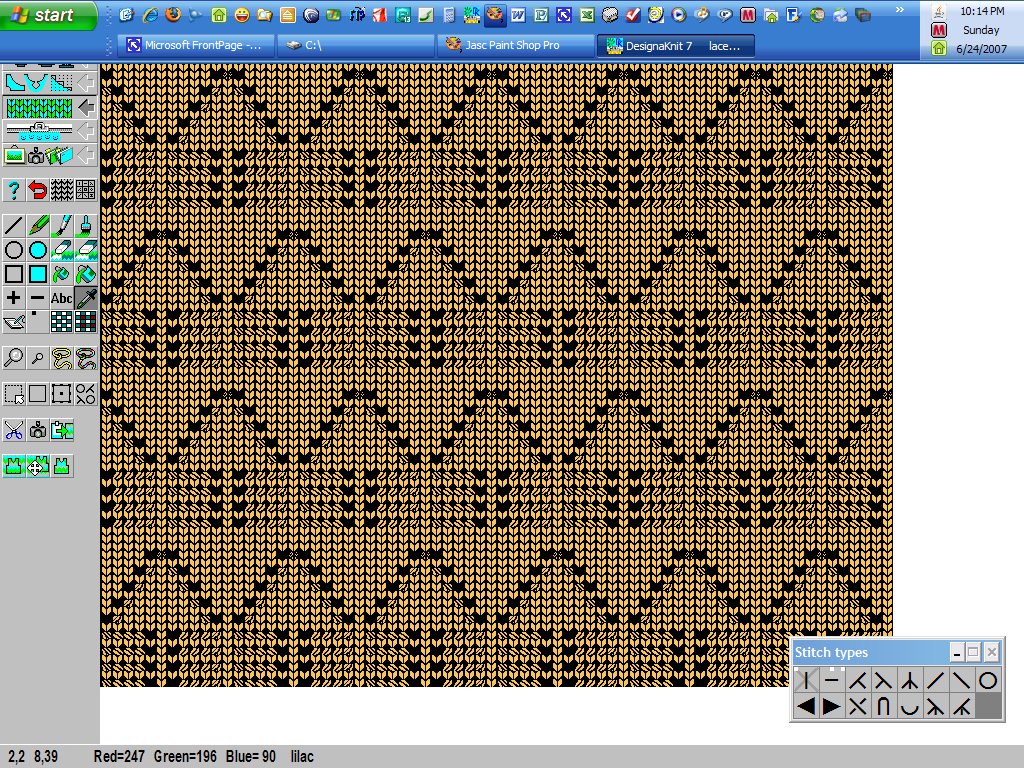
DAK 8 LACE TOOL The lace tool is used to create lace patterns for both hand and machine knitting. It easily assists in making lace patterns for machine knitting, where you draw the pattern right onto the stitch grid so you see the finished result. DesignaKnit will then break down the pattern by separating the pattern into transfer carriage and knit carriage rows and, after you have downloaded it, you will be able to follow the carriage selection and knitting instructions in Interactive Knitting, so you will know when to use each: the lace carriage (for transferred lace) and, where necessary, resetting the carriage, and when to knit with the regular carriage. DesignaKnit will also automatically check for any stitch and design errors in the pattern and warn you of them, if they arise from already separated lace designs which you've put into Interactive Knitting. LACE ON THE SILVER REED LACE ON THE BROTHER LACE ON PUNCHCARD MACHINES DesignaKnit 8 LACE TOOL: $148.20
INFORMATION ABOUT DESIGNAKNIT version 7 (DaK8 replaces version 7) This is information for familiarity purposes only. But read on...most of what you see below applies to DaK version 8. You may wish to install the Demo of version 7; there is no demo program for version 8. What's in DesignaKnit 7
DesignaKnit 7 Professional Version Demo The DesignaKnit demo is will allow you to use the features of the Professional version program, but will not allow you to save anything you create. The demo will also not allow you to open Stitch Designer if you have a capture program running in the background.
Download the DesignaKnit 7 Demo Standard Garment Styling Start immediately with choosing one of the program's built in garment patterns and setting the knitting tensions to match your chosen yarn, then:
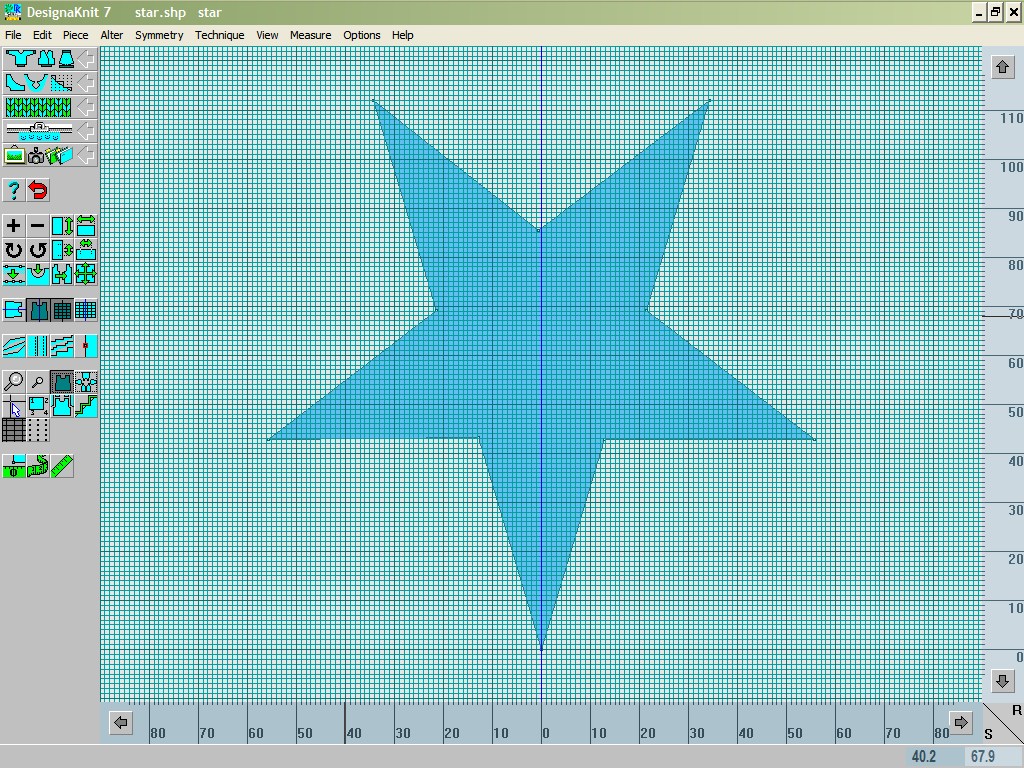
If you want more control over the design, you can use measurements you have entered yourself - there is even a database where you can store all your friends' and family's or customers' measurement data, ready to be accessed and used any time you want them. You can alter and adjust body measurements individually and you can modify the ease on each one: there are a whole host of features to help you to produce the perfect garment. The Standard Garment Styling is a feature of both the Standard and the Professional versions of DesignaKnit 7. Original Pattern Drafting A powerful array of drafting tools in this section of the program assists you to start garments from scratch, or you can import the pieces from the Standard Garment Styling and use them as the basis for an original design. Create original pattern blocks from a square piece by setting the maximum dimensions and adding, deleting and moving points until you achieve the shape you want:
Especially for knittingOther powerful features are there to help you prepare the pieces for knitting:
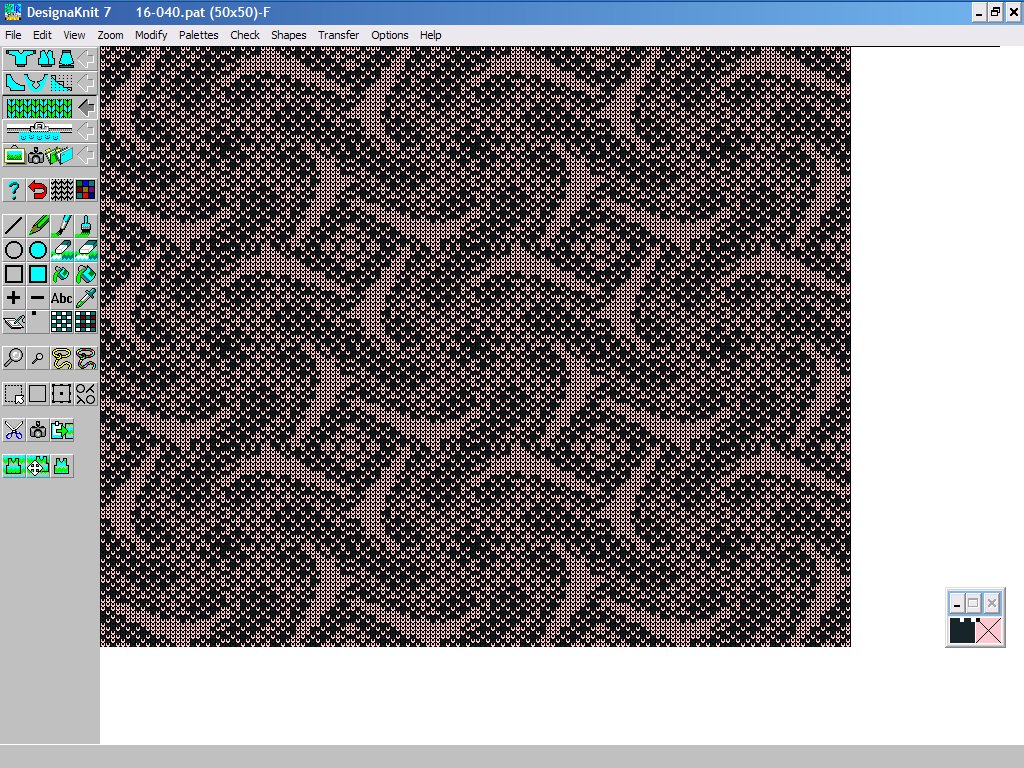
Stitch Designer This section of DesignaKnit 7 looks similar to other Windows paint programs, but its tools and functions are specially adapted to designing stitch patterns for machine and hand knitting, as well as crochet, needlepoint, cross stitch, and beading. This is where you can design a stitch pattern, choose one of several printout formats, integrate the stitch pattern into the garment pieces and convert pieces ready for Cut-and-Sew knitting. Designing Stitch Patterns
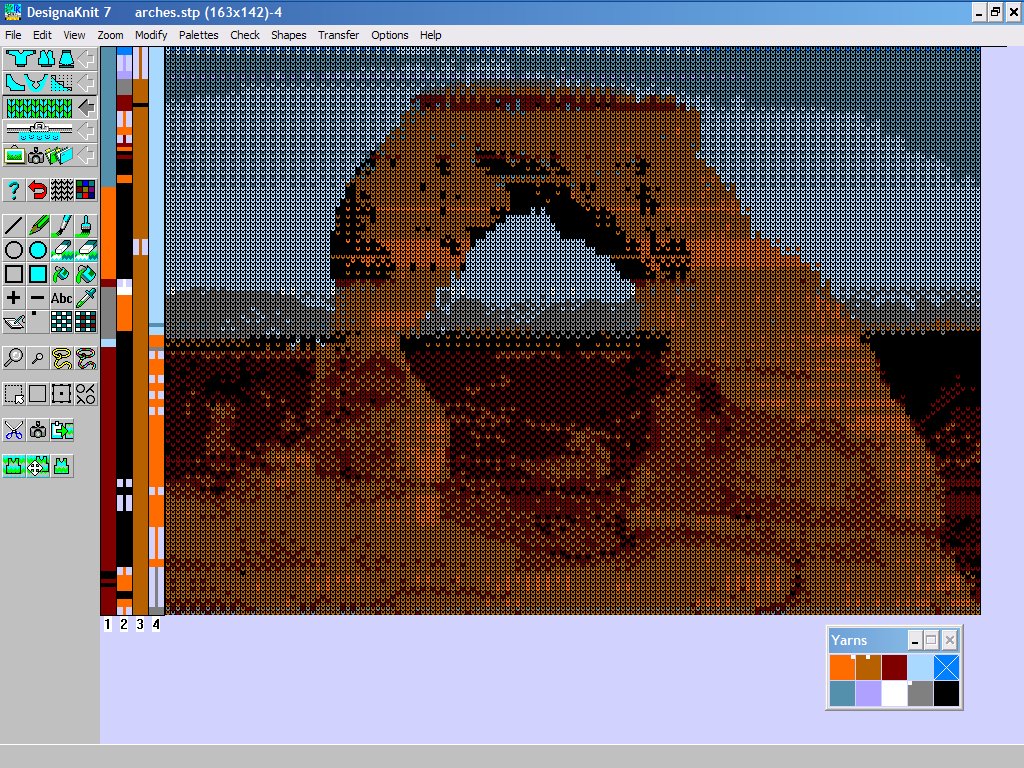
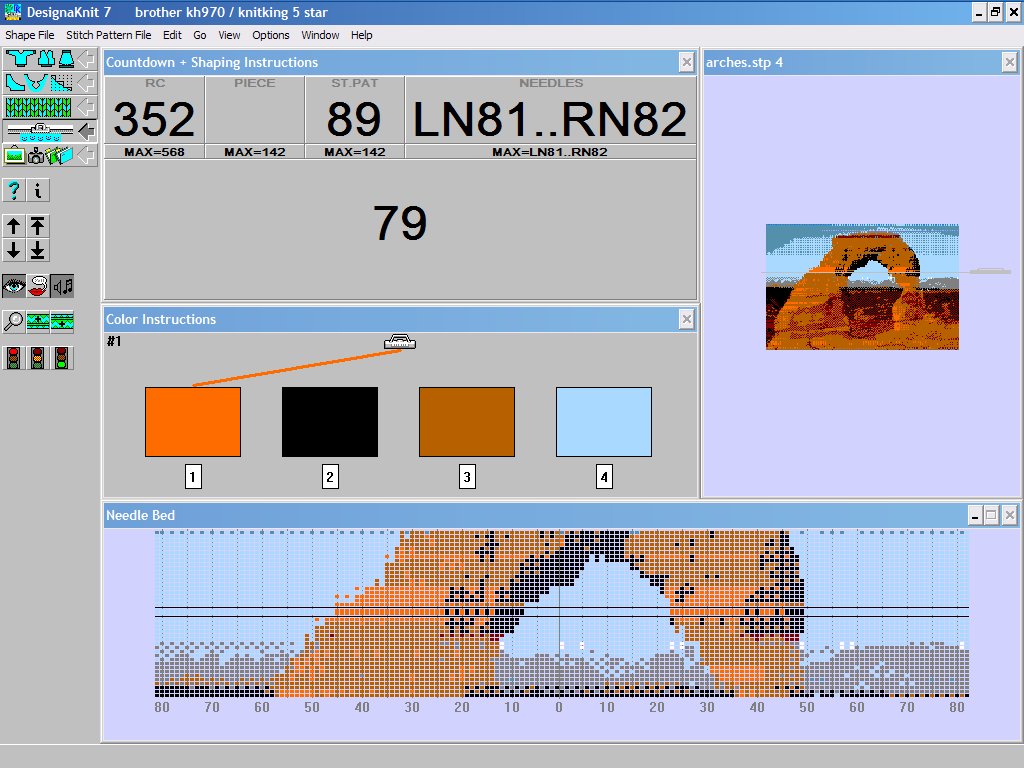
DesignaKnit Graphics Studio Convert graphics from other sources into stitch patterns The DesignaKnit Graphics Studio is a sophisticated program within DesignaKnit for processing graphics files, whether original computer-generated art or scanned images or digital photographs, and rendering them as stitch patterns. It offers fine control over the area of the image to be converted. Decide how many stitches and rows you want in the final result and set up the grid accordingly. The grid can have independent corners, so you can correct any skewing in the original, or use it to advantage to grab any part of the image at any angle. The Graphics Studio gives the user complete control over how
You can trial the conversion at any stage, and for automatic pattern selection on the knitting machine, can preview the effect of reducing the colors to a manageable number per row. For machine intarsia, hand-knitting, Swiss darning or other types of surface embellishment, you can work with up to 16 colors per row. Take the converted image into DesignaKnit's Stitch Designer screen to continue work - perhaps by adding texture - and to prepare for knitting, whether by machine or by hand.
Print
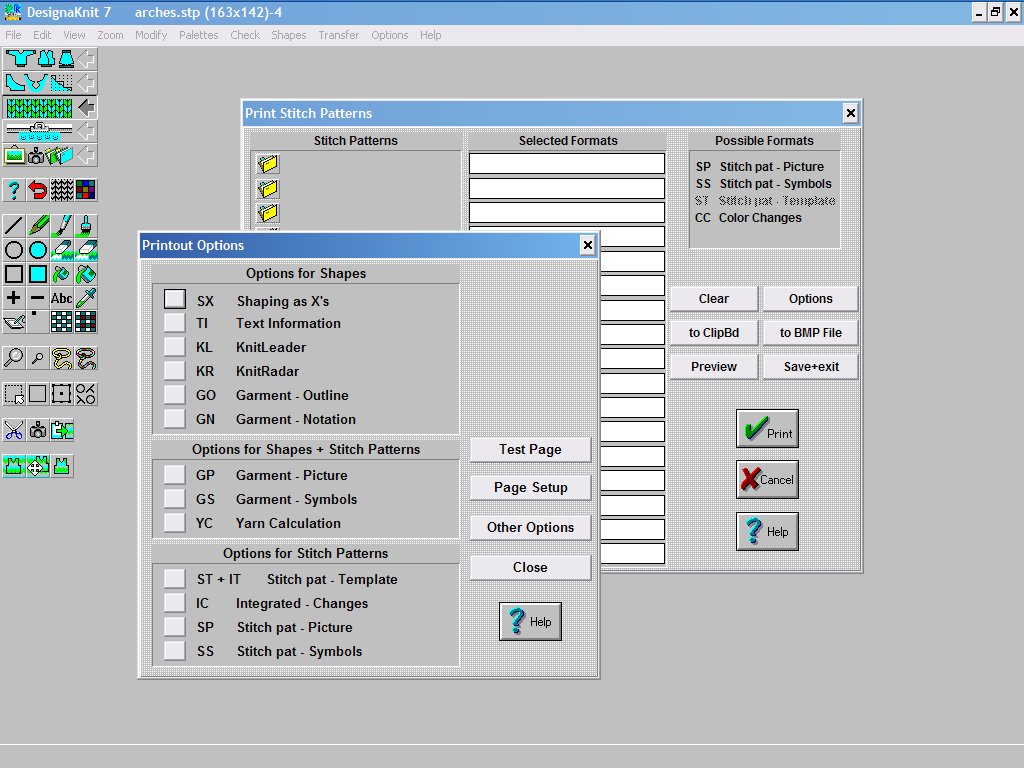
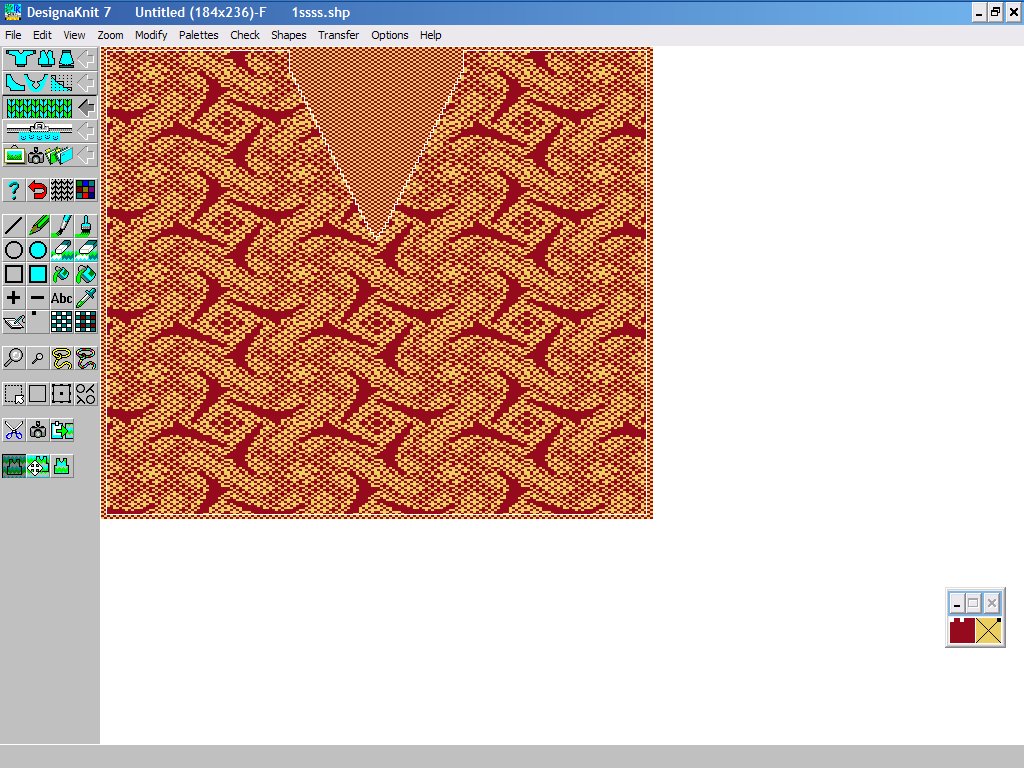
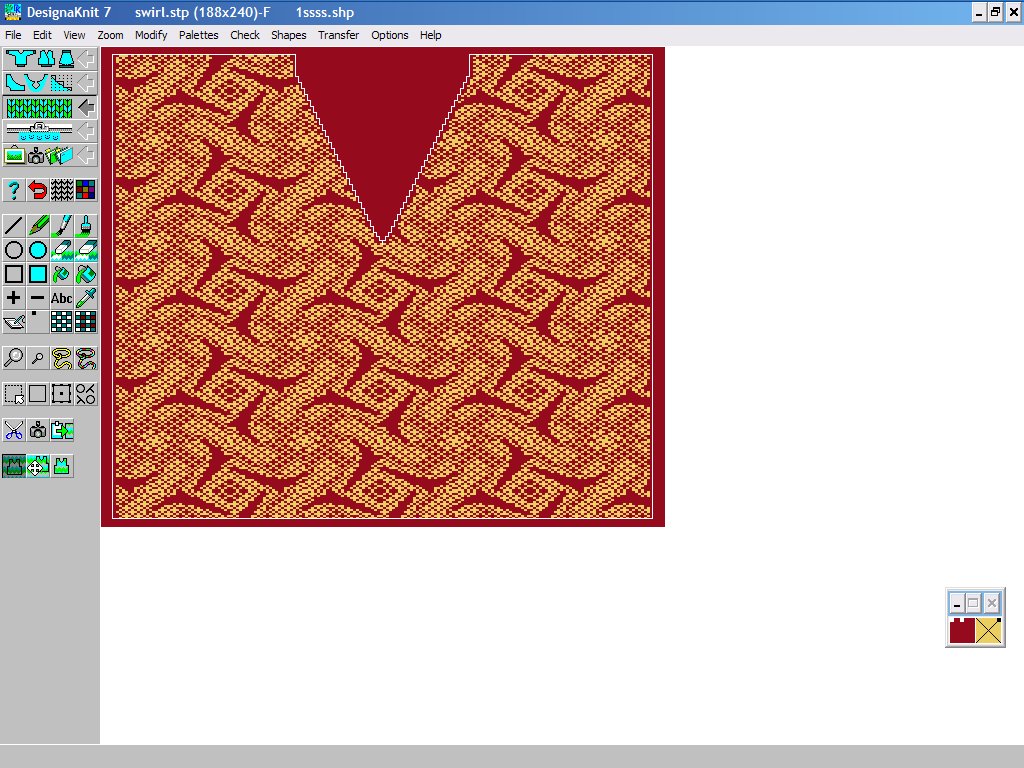
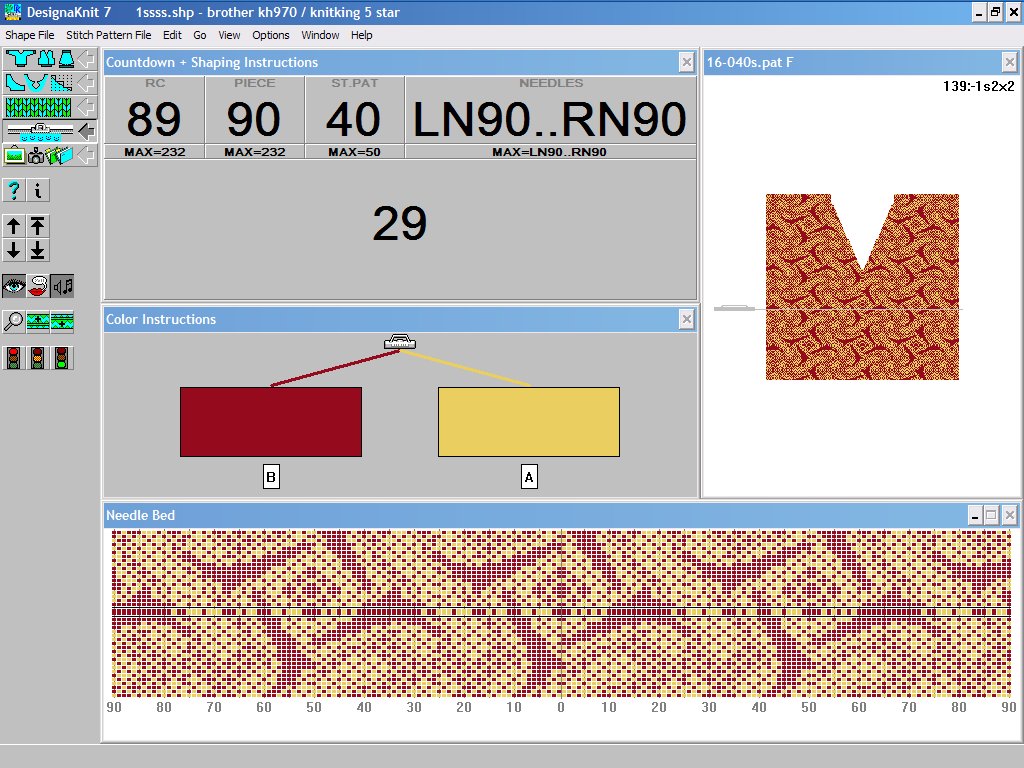
A variety of charts, diagrams and templates DesignaKnit offers a range of diagrams and charts for garment shaping and stitch pattern instructions for both hand and machine knitting Use your color printer to produce full-color scale charts, or take advantage of the facility to use symbols instead of colors Print templates for punch cards, reader cards and mylar sheets Print templates for Knitleader and Knit radar Save printouts to bitmap files for use in other applications Integrating stitch patterns with garment designs Show the pieces singly or, by having more pattern repeats on screen, all the pieces of a garment at the same time Move pieces around and place with precision Place pieces exactly to position motifs and patterns Match side seams, sleeves to bodies and cardigan fronts For downloading to a knitting machine, DesignaKnit will make certain that the stitch pattern is placed centrally for each individual piece Cut out the spare fabric so that you can see exactly how the pieces will look when they come off the knitting machine. For fine adjustment of position, you can move the pieces around in cut-out mode Adapt for Cut-and-Sew Experiment with layout plans, making sure that the pieces are correctly placed on the fabric Use the cut-and-sew command to weld the shape to the stitch pattern Fill necklines and armholes with a variety of stitch patterns - stripes, bird's eye, solid color or outline Transfer stitch patterns Electronic Knitting Machines
To find out which Link is the one for your machine, read CABLE LINKS below. CABLE LINKS: Linking Electronic Knitting Machines and DesignaKnit Cable Links are the means by which DesignaKnit can download stitch pattern data to an electronic knitting machine. All types of knitting machine, even non-electronic manual ones, may be linked to DesignaKnit for Interactive Knitting. The cable link allows the knitter to have row by row instructions for shaping and color changing. With each pass of the carriage the screen updates to show details of the progress of the work. DesignaKnit has cable links for the following types of machine: Brother/KnitkingThe following cables are available - please consult the table below to see which one(s) are appropriate for your knitting machine(s) or electronic pattern device(s).
Silver Reed/Knitmaster/Studio/SingerThe following cables are available - please consult the table below to see which one (s) are appropriate for your knitting machine (s) or electronic pattern devices.
Pfaff/PassapThe following cables are available - please consult the table below to see which one (s) are appropriate for your knitting machine (s) or electronic pattern devices.
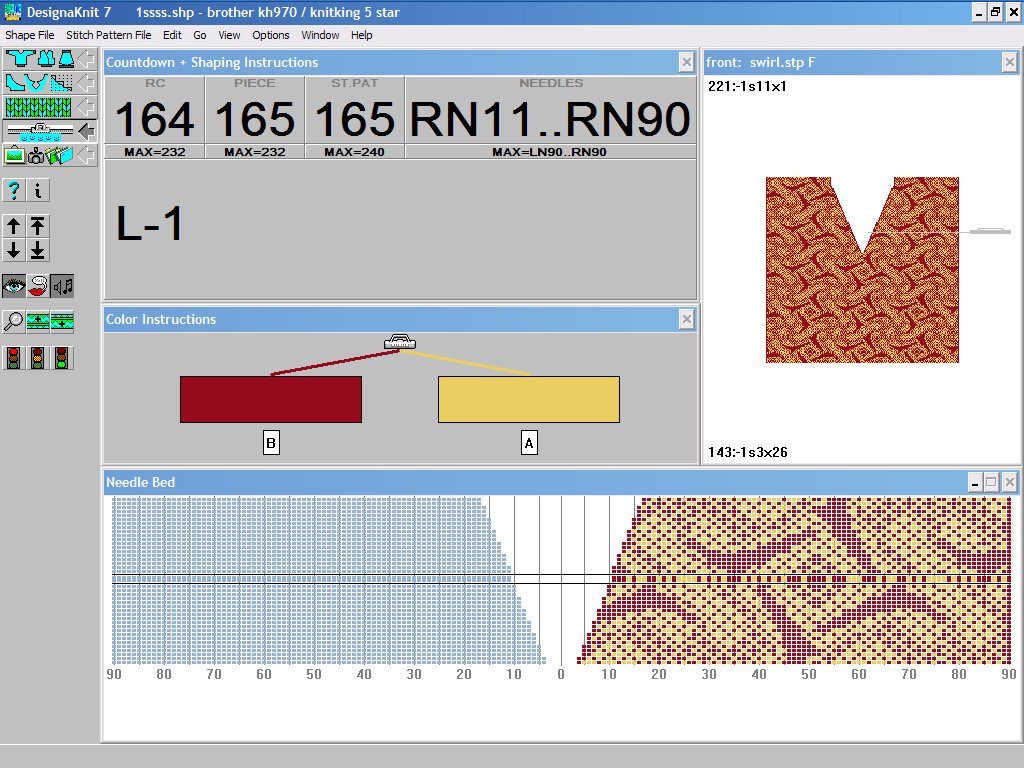
Punchcard and Other Non-Electronic Knitting MachinesDesignaKnit can prepare a template for the punchcard, reader card or mylar sheet for your machine - simply print it out on your desktop printer and transfer the pattern to the appropriate card or sheet. To find out how to knit interactively with a punchcard or other non-electronic knitting machine, use the SCREEN LINK, see below. SCREEN LINK: The Non-Electronic Cable The function of this cable is to synchronize the shaping and color changing instructions with the carriage movement of a knitting machine; it will not enable you to transfer stitch patterns directly into the knitting machine. It can be used in conjunction with punchcard machines or electronic machines without a computer interface for pattern input, or any other kind of machine without a pattern reading facility. The cable functions by updating the Interactive Knitting screen with each row knitted, and will work for all kinds of stitch techniques as well as plain knitting. The layout of the console of some knitting machines may mean that a special support is required to attach the KnitLink box to the yarn tension mast - if in doubt, please consult Soft Byte Ltd. or your country's importer. You should use only a cable which has been designed for your make and model of knitting equipment. Make sure that the label on the cable shows that it is the correct cable for your machine. Some Cable Links can now be connected via a USB adapter: After exhaustive testing of many types of Serial to USB conversion kits, Soft Byte have at last been able to source a reliable one, which they or their national importer can supply to you. The following cables may be used with this device: BrotherLinks 1, 2, 3, 4 & 5, E6000Links 1 & 2, E8000Link, ScreenLink and SilverLink 3 If you have a serial SilverLink 4 which you wish to change to USB, please ask for the special SilverLink 4 conversion unit. Do not connect a cable to a disk drive or to anything other than an IBM-compatible PC RS232 serial port, or to a USB port, except via an approved adapter, and the appropriate knitting machine or pattern device. Soft Byte Ltd. and its agents cannot accept any responsibility whatsoever for any damage howsoever caused. Interactive Knitting
for electronic and non-electronic knitting machines This is the ultimate shaping stitch pattern control tool which obviates the need for mechanical charting and electronic patterning devices. In order to knit interactively, you must have an appropriate cable link.
Lace Tool Add-on The Lace Tool is a special add-on for Stitch Designer. Click on the tool and you can draw lace patterns instantly, as they will look when knitted, leaving DesignaKnit to work out the lace carriage passes and settings. You can design lace for Brother and Silver Reed electronic machines, Brother and Silver Reed punch card machines and Toyota Machines. The Lace Tool is great for hand-knitted patterns too as it allows the designer complete freedom. Brother Electronic MachinesWith the Lace Tool you can draw both Lace and Fine Lace - and you can mix the two. You can design stitch patterns with bands of lace, Fair Isle and stitch texture in the same pattern, and you can even have lace and Fair Isle or texture in the same row. When you follow the pattern in Interactive Knitting, DesignaKnit will tell you when to change to the lace carriage, when to change the carriage settings from fine lace to normal lace and vice versa and when to change back to the knitting carriage, and when to change the knitting technique. Silver Reed Electronic MachinesYou can prepare lace patterns for both Simple and Fashion lace knitting and you can combine Fashion Lace with bands of Fair Isle or textured knitting. When you follow the pattern in Interactive Knitting, DesignaKnit will tell you when to change from Fashion to Simple lace settings and, if you are combining with other knitting techniques, when to change the carriage. Toyota and other Punch Card MachinesIf you have a Toyota machine you can design the lace as it will look when knitted, and DesignaKnit will automatically separate the lace selection to produce a template for the punchcard. Then, when you link to Interactive Knitting, via the ScreenLink, DesignaKnit will tell you which carriage to use and when to change. |
ALL POINTS YARN'S
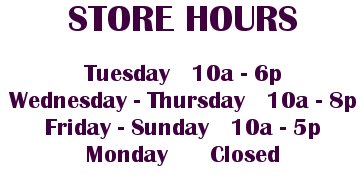
All Points Yarn Tuesday - Saturday Sunday - Monday AUTHORIZED
Silver
Reed
DesignaKnit8 Cables
QR Code Use your Smartphone's Here's a sample!
All Points Yarn Paint Ball All Points Yarn on YouTube
Links to Artisans | ||||||||||||||||||||||||||||||||||||||||||||||||||||||||||||||||||||||||||||||||||||||||||||||||||||||||||||||||||||||||||||||||||||||||||||||||||||||||||||||||||||||||||||||||||||||||||||||||||||||||||||||||||||||||||||||||||||||||||||||||||||||||
|
Send mail to
allpointsyarn@aol.com with
questions or comments about this web site.
|